How to move from LastPass to Secrets
Export from LastPass, import into Secrets, check your work and clean up. The export has one or two quirks, so let's go through it slowly.

Updated November 2026. The screenshots are from 2022, so some screens will look a little different now. The steps are the same.
So you’ve decided to leave LastPass. Good news: your passwords aren’t locked in. LastPass will hand them all over in one file, and Secrets knows how to read it. The export has a quirk or two, so let’s go through it slowly. Come along.
(A quick note if you’re new here: Secrets is our hosted password manager. It runs Vaultwarden, an open-source server that works with the official Bitwarden apps, which is why you’ll see the name Bitwarden on a few screens below.)
Step 1: Create your Secrets account
You need somewhere to move to. Pick a plan on the Secrets page, and after checkout follow the get started guide to set your master password.
Step 2: Export from LastPass
Log in to your LastPass vault in a web browser. In the left sidebar click Advanced Options, and under Manage your Vault choose Export.
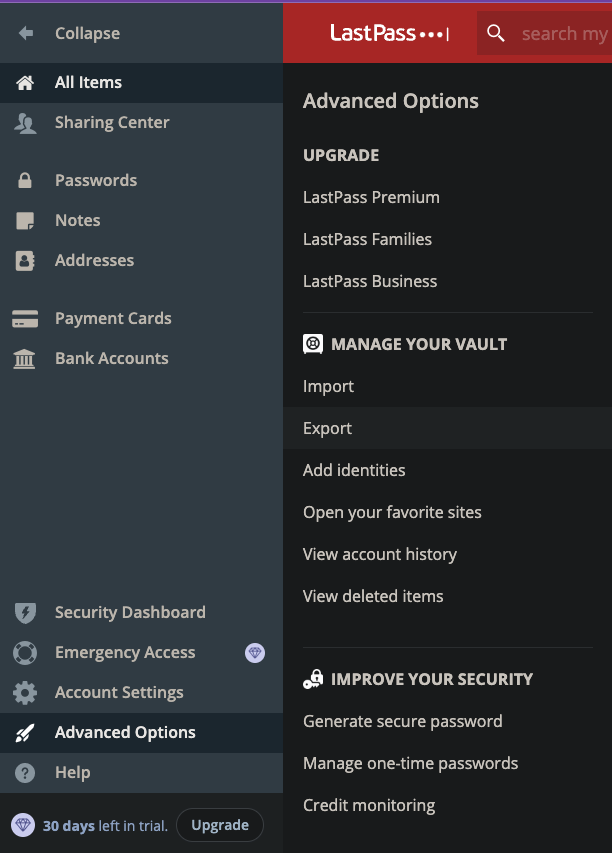
Here’s the first quirk. LastPass doesn’t give you the file right away. It sends you an email asking you to confirm that it’s really you. Open that email, confirm, then come back to your vault and choose Export again. This time it asks for your master password and gives you the data.
And the second quirk. Depending on your browser, you’ll either get a file downloaded (a .csv file), or… a page full of text. Uh oh. Don’t worry, that text is your export. Select all of it, copy it, paste it into a plain text editor (Notepad on Windows, TextEdit on a Mac) and save it as export.csv. Make sure the name ends in .csv and not .txt.
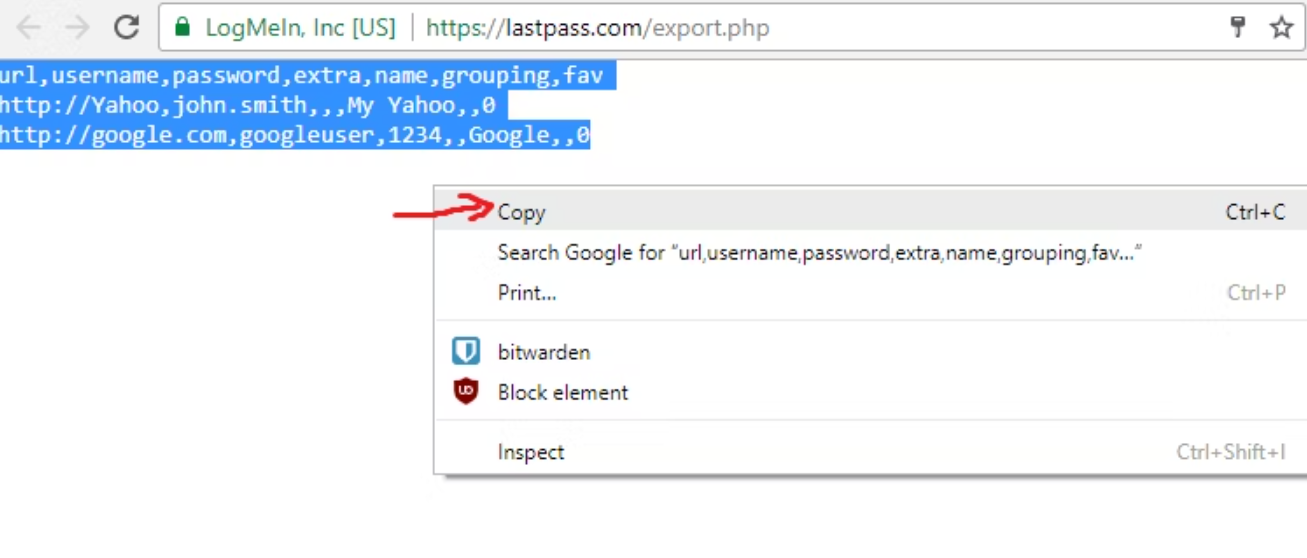
If you went the copy-and-paste route, look for one gremlin before you move on: a password containing an & can come out as &. Search the file for & and change each one back to &.
Now, please read this bit twice. That file is not encrypted. It’s a plain list of every website, username and password you have, readable by anyone who opens it. Don’t email it to yourself and don’t drop it into a cloud folder. We’re going to use it in the next step and then delete it.
Step 3: Import into Secrets
Log in to the Secrets web vault at secrets.ayamsecure.com. Go to Tools, then Import data. Choose LastPass (csv) as the file format, select your file (or paste its contents into the box), and click the import button.
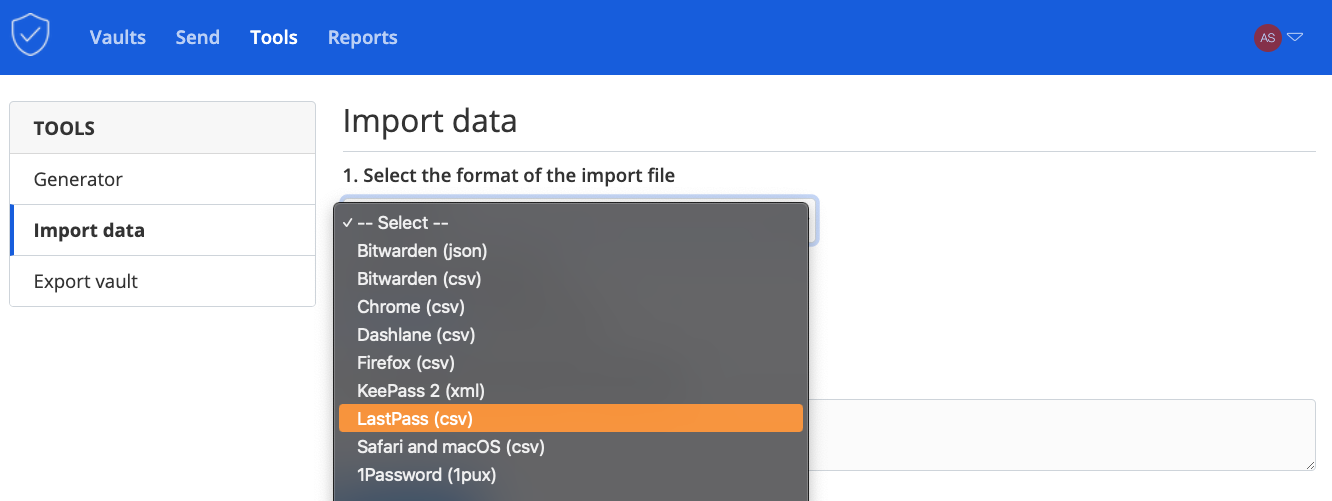
One thing to know: the importer doesn’t check for duplicates. If you run it twice, you’ll get two of everything. So run it once.
Step 4: Check your work
Don’t delete anything at LastPass yet! Have a look around your new vault first.
- Is the number of items roughly what you had in LastPass?
- Open five or six logins you use every day. Username there? Password there? Website address there?
- Try logging in to one real website with the Bitwarden browser extension. (Not installed yet? Here’s how.)
- Check the unusual items. A CSV file is plain text, so it can’t hold a file. If you kept attachments in LastPass (a scan of your passport, say), download them from LastPass and add them to Secrets by hand. Do the same check for secure notes and for anything else that isn’t an ordinary login.
If the import stops with an error, Bitwarden’s LastPass import guide has a troubleshooting section that covers the common ones. Or write to me and we’ll sort it out together.
Step 5: Clean up
Two things to do, in this order.
First, delete the export file. Put it in the trash and empty the trash. Remember, it’s every password you have in plain text.
Then, when you’re ready, delete your LastPass account. There’s no rush. I’d keep both running side by side for a week or two, until you’ve stopped reaching for the old one. When that day comes, log in to LastPass and visit their Delete Account page. Deleting it is permanent, which is why we checked our work first.
Onwards
That’s the whole move. Next up, have a read of how to use Secrets to get the browser extension and the phone apps set up.
Cheers,
Jay